Palette · Canvas · Inspector
How the Drag-and-Drop Canvas Behaves
The landing shows a mock of drag-and-drop and moves on. This page is the mechanics behind it: three panes, what lands in each, the gesture that puts a block on the page, and what changes once you have selected it — how a style edit is scoped to one screen width, how a step undoes, and how the tour and the settings tabs fit around all of it.
Three panes, three jobs
The editor is laid out as a palette on one side, the canvas in the middle and an inspector on the other, and the layout needs the width to show all three at once: this host gates the route below 960 pixels and explains instead of rendering a layout that would overlap itself. The palette is where blocks live before they exist on the page; the canvas is the page itself, rendered live; the inspector is empty until something on the canvas is selected, at which point it fills with that element's own controls.
A toolbar sits above the canvas rather than inside either pane, and it carries two switches that matter more than their size suggests: one toggles between editing and a preview of the page as a visitor would see it, and the other selects which of five screen widths the canvas is currently rendering at. Autosave runs from the same header, so there is no separate save step between placing a block and it being kept.
The gesture: drag from the palette, drop on the canvas
The core motion is a straight drag: pick a block in the palette and drop it onto the canvas, into whatever container is under the pointer when you release. That single gesture is how every block type gets onto a page — there is no separate insert menu or click-to-add path documented for it, so if you want the block on the page, dragging it there is how.
Once a block is on the canvas, two more actions apply to whatever is currently selected: duplicate it, which produces a copy next to the original, and delete it, which removes it. Repositioning an existing block is done the same way it was added — by dragging it. Builder42's own guided tour treats the palette-to-canvas drag as its own step, which is a sign of how central the motion is to the whole workflow, not an incidental detail buried in a settings menu.
Selecting a block opens the inspector, in three tabs
The inspector is where a selected block stops being just placed and starts being configured, and it is organized into three tabs: Content, for the text, image or other data the block holds; Style, for its visual appearance; and Interactivity, for attaching behaviour. Which tab you need depends on what you are changing, but the block stays selected as you move between them, so a content edit and a style edit on the same element are two tabs apart, not two separate trips to the canvas.
The Style tab is where per-breakpoint control lives, and it deserves its own explanation because it is easy to underestimate: a style change you make is scoped to the screen width the canvas is currently showing, not applied everywhere at once. A heading you shrink while the canvas is set to the mobile width does not change what that heading looks like at desktop width, unless you switch the viewport selector to desktop and repeat the change there. Attaching a behaviour — an accordion, a modal, a reveal-on-scroll effect — is a setting on the Interactivity tab rather than a section of its own; what that catalogue of behaviours contains belongs to the no-code guide.
Five named widths, not a media query you write
The viewport selector in the toolbar names five widths rather than leaving the number to memory: Mobile as the base, then Large mobile, Tablet, Laptop and Desktop. Switching the selector re-renders the canvas at that width and scopes whatever you edit next to it, which is what makes the earlier point about the Style tab concrete — five widths means five independent sets of overrides per element, and none of them is written by hand as CSS.
The practical shape of this is: pick the width you are unhappy with, fix the one element that looks wrong there, and move to the next width only if it also needs a change. A layout that already looks right at four widths and wrong at one does not need four repeated edits — it needs exactly one, at the width where it breaks.
Undo, redo, and the tabs around the canvas
Every drag, duplicate, delete and style change goes onto a history you can step back through with Ctrl or Cmd plus Z, and forward again with Shift added to that same combination. Both shortcuts are suppressed while the cursor is inside a text field, specifically so that an ordinary keyboard shortcut used while typing does not accidentally rewind a change you meant to keep.
Three more tabs sit in a settings area outside the canvas itself: Layers, for the structure of the page as a tree rather than as a rendered surface; Pages, for adding, renaming and switching between the pages of a multi-page site; and Languages, for the site's content languages. All three are part of the same three-pane interface described above, reachable without leaving the editor. A guided tour walks a first-time visitor through this whole layout — the header and autosave, the edit/preview toggle, the viewport selector, undo and redo, the palette, the canvas, duplicate and delete, the three inspector tabs and the settings tabs for layers, pages and languages. The tour defines 18 steps in total; two of them disappear in this embedded mount, tied to standalone chrome this host does not render, leaving 16 steps that actually play here.
Four templates dense enough to be worth taking apart
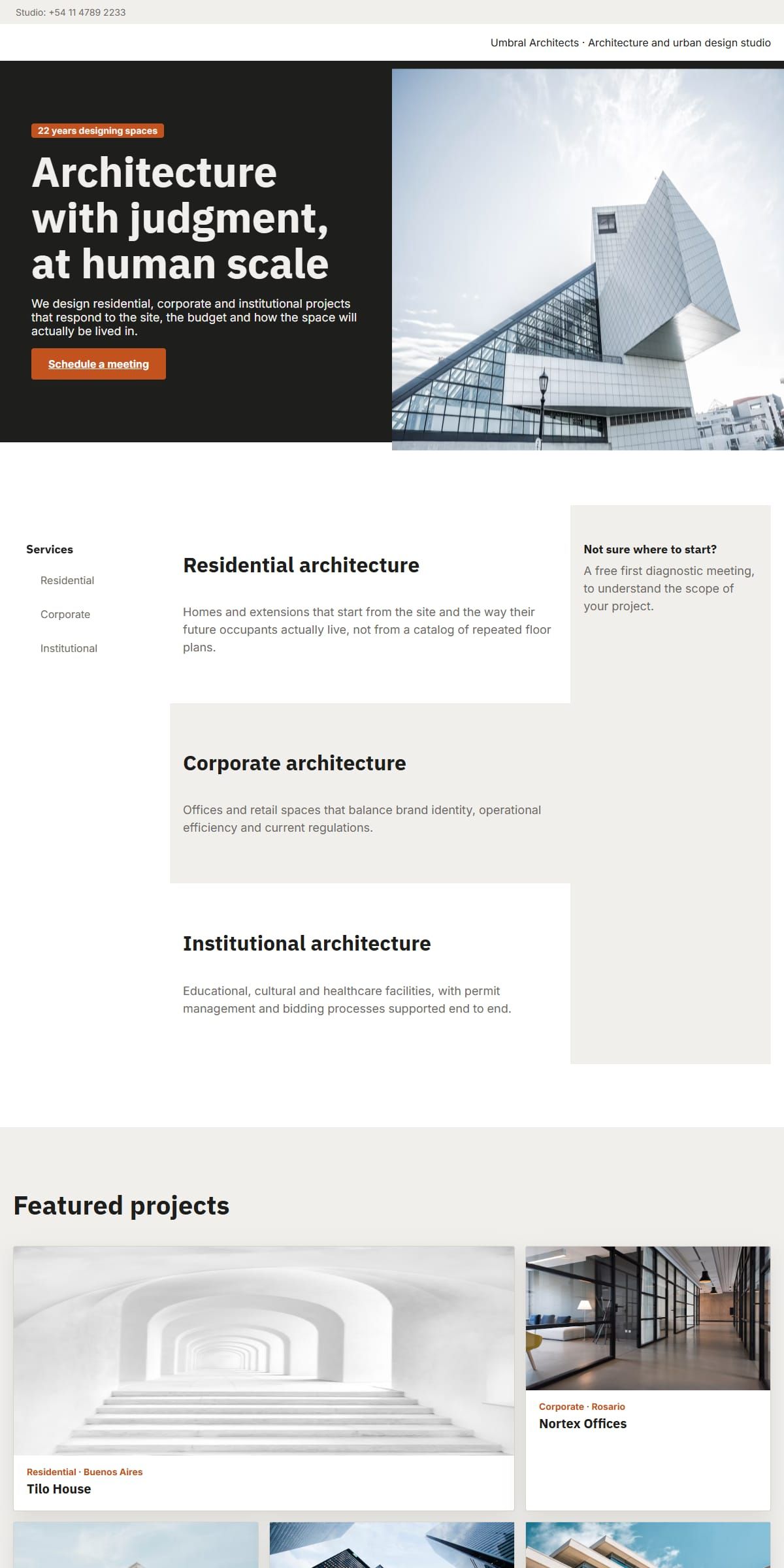
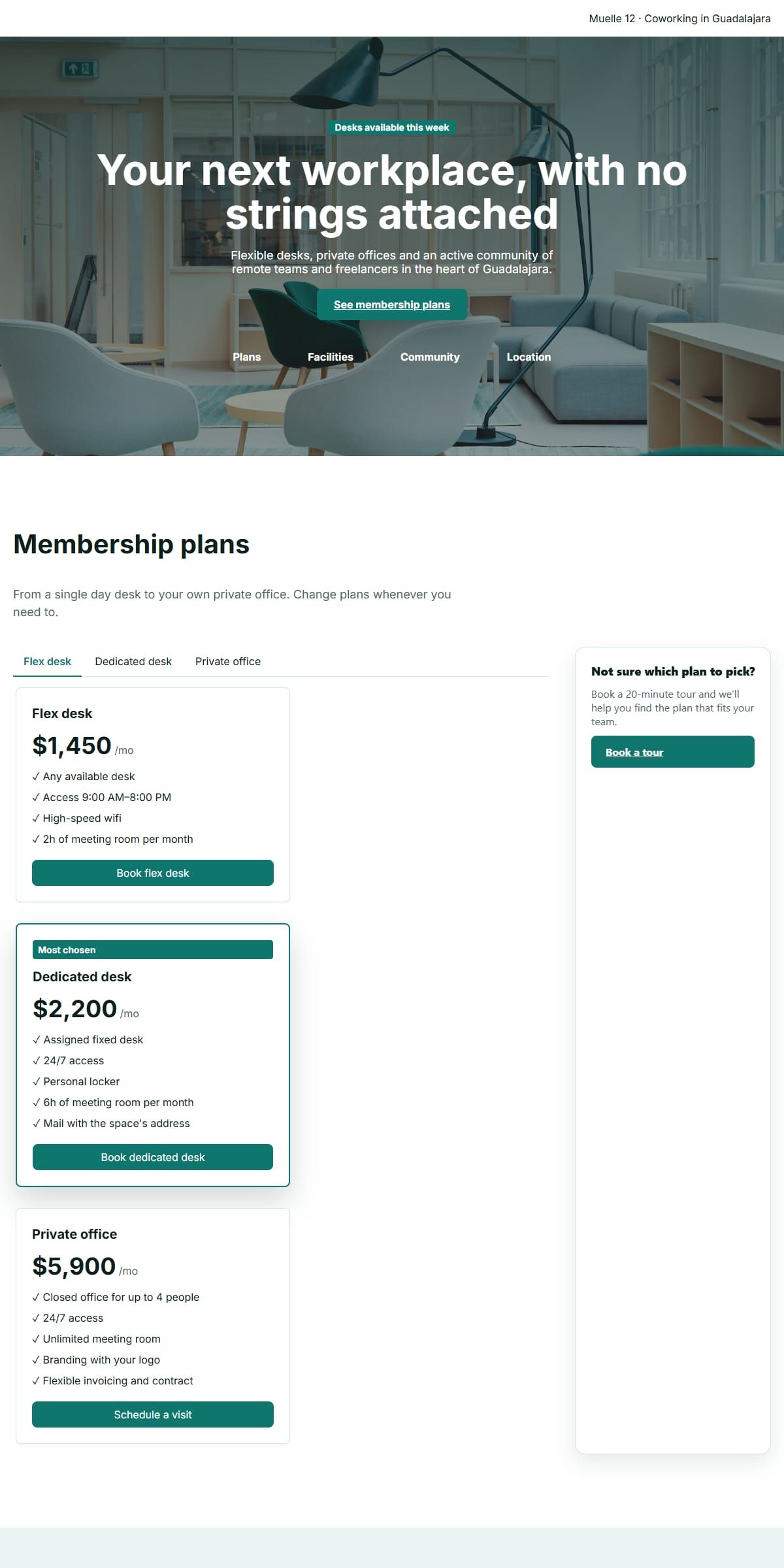
A creative agency page, an architecture studio site, a team page and a clothing store layout — picked because each stacks enough distinct blocks and breakpoints to show what selecting, dragging and restyling one element among many actually looks like.


Questions people ask first
How do I actually put a block on the page?
Drag it from the palette and drop it onto the canvas, into the container under the pointer when you release. That drag is the way every block type reaches a page; there is no separate insert step.
If I resize a heading for mobile, does it change on desktop too?
No. A style change made in the inspector applies only to the screen width the canvas is currently showing. Switch the viewport selector to another width and the same element can carry a different override there.
What are the three tabs in the inspector for?
Content holds the text, image or other data a block carries. Style holds its visual appearance, scoped per breakpoint. Interactivity is where you attach a behaviour to the block, such as an accordion or a modal.
Can I move a block after it is already on the page?
Yes, by dragging it again — repositioning uses the same drag motion as placing it the first time. Duplicating and deleting the selected block are separate actions available once it is selected.
Does undo go back more than one step?
Yes. Ctrl or Cmd plus Z steps backward through a history of changes, and adding Shift redoes a step forward again. Both shortcuts are ignored while you are typing in a text field.
Why does the editor block small windows instead of just shrinking the layout?
The palette, canvas and inspector sit side by side and need at least 960 pixels of width to stay usable; below that they would overlap, so this host shows an explanation instead of a broken three-pane layout.